User Group Management
Overview
A User Group is a collection of users and the core tool for batch authorization. Group users with the same function into one group, then associate the group with several roles, and all users in the group will receive those roles' permissions at once. This is much more efficient than assigning roles to users one by one, and is especially suited for management scenarios organized by team or position.
Key Features
- Batch authorization: Once a user group is associated with roles, all members share those role permissions
- Flexible organization: Create user groups by any dimension such as team, position, or project
- Member management: Add and remove members at any time, with search and batch operations supported
- Role reuse: The same role can be associated with multiple user groups, making the permission model clear and maintainable
User Group List Page
Interface Layout
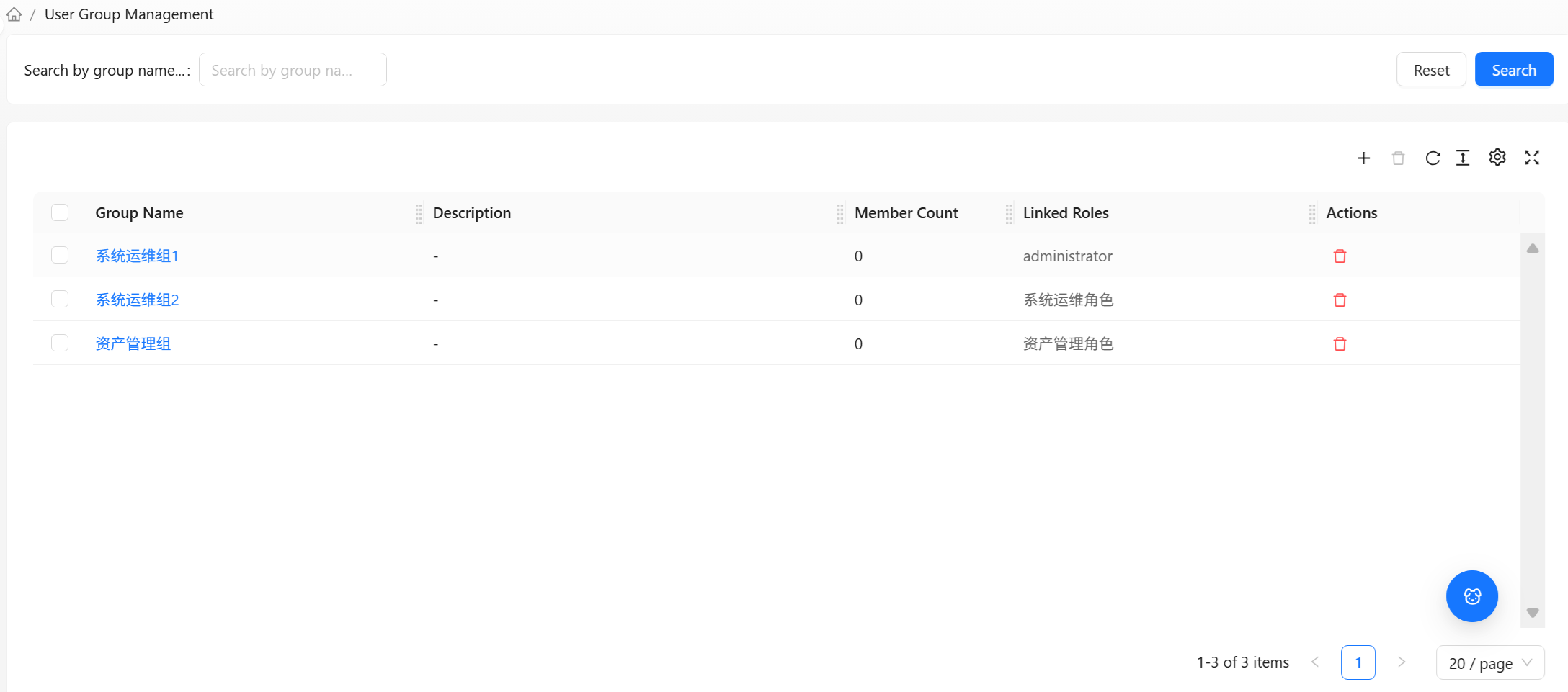
The User Group Management list page uses a standard list layout, divided into a search area, table area, and toolbar.
For common table operations such as column management, density, and pagination, see Data Table Common Operations.
User Group List
| Column | Description |
|---|---|
| Group name | The name of the user group; click to enter details |
| Description | Description of the user group (from the group's basic information or attributes) |
| Member count | Total number of members in the group |
| Associated roles | Roles associated with this user group (displays "—" when empty) |
| Actions | Per-row delete (requires edit permission) |
Search
Enter a keyword in the search box, click Search to execute the query, or click Reset to clear criteria. Supports searching by group name.
Toolbar
| Button | Function | Use Case |
|---|---|---|
| Create | Opens the "Create User Group" dialog | Creating a new user group |
| Batch Delete | Deletes multiple selected user groups at once | Cleaning up groups no longer in use |
| Refresh | Reloads the list | When you want to see the latest data |
Create and delete operations are only visible to administrators with edit permission on the "User Group" resource.
Creating a User Group
Click the Create button in the toolbar to open the Create User Group dialog.

Field Descriptions
| Field | Required | Description |
|---|---|---|
| Group name | Yes | The name of the user group; it is recommended to reflect the group's function (e.g., "Network Operations Group") |
| Description | No | Description of this user group to help other administrators understand its purpose |
Creation Steps
- Click the Create button in the toolbar
- Fill in the group name (required) and description (optional)
- Click Create to submit
A "User group created successfully" message will appear, and the new group will immediately appear in the list. A newly created group has no members or associated roles yet; you need to enter its details to configure them.
Deleting a User Group
Deleting a Single User Group
Click the delete icon in the Actions column of the corresponding row, then click Confirm in the confirmation dialog.
Batch Deletion
- Select multiple user groups to delete
- Click Batch Delete in the toolbar
- Click Confirm in the confirmation dialog
Deleting a user group only deletes the group itself; it does not delete the user accounts within it. However, the role permissions that members inherited through this group will no longer be valid. If these users do not have other roles or user groups as permission sources, they will lose access to resources they previously relied on through this group after deletion. Please confirm that members' permissions will not be interrupted before deleting.
User Group Details Page
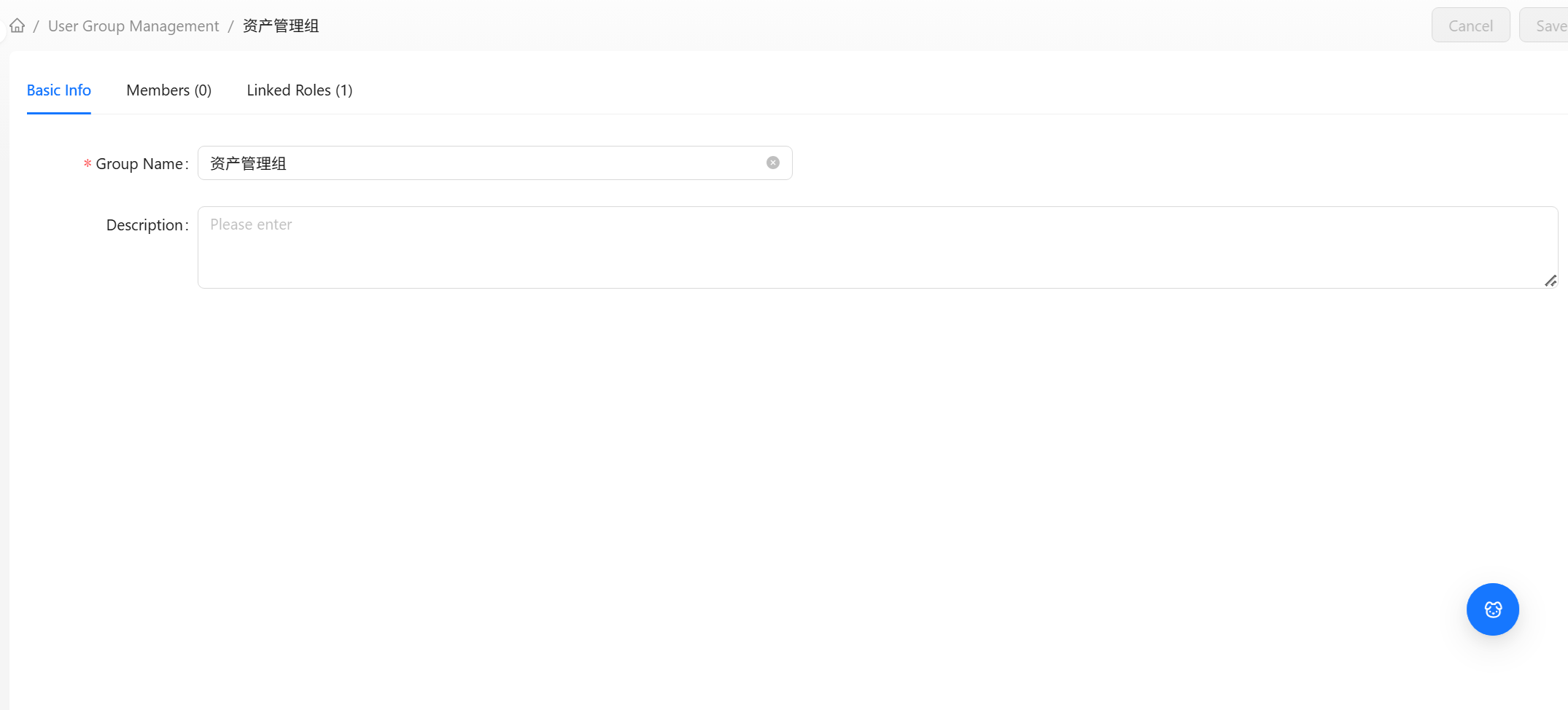
Click the Group name in the list to enter the User Group details page. The details page organizes three types of information through tabs.
Top Action Bar
| Button | Function |
|---|---|
| Cancel | Discards unsaved changes in the "Basic Information" tab |
| Save | Submits changes in the "Basic Information" tab (only active after basic information is modified) |
If you modify basic information without saving and then attempt to leave the page, you will be prompted: "You have unsaved changes. Are you sure you want to leave?"
Tab Overview
| Tab | Content |
|---|---|
| Basic Information | Modify user group name and description |
| Members | Manage group members (add, remove, search) |
| Associated Roles | Manage roles associated with the group (associate, disassociate, search) |
Basic Information
Used to modify the user group's name and description.
| Field | Required | Description |
|---|---|---|
| Group name | Yes | User group name |
| Description | No | User group description |
After making changes, click Save at the top to submit.
Members
The Members tab lists all group members in a table and provides member add/remove management. The total member count is displayed after the tab name (e.g., "Members (12)").
Member List
For common table operations such as column management and density, see Data Table Common Operations.
| Column | Description |
|---|---|
| Username | Member's login username |
| Display name | Member's full name |
| Member's email | |
| Actions | Remove this member (requires full write permission) |
Searching Members
Search by username or display name in the search area to quickly locate group members.
Adding Members
- Click the Add Member button in the toolbar to open the dialog
- The dialog lists all users not yet in this group (multi-select supported)
- Check the users to add
- Click Add to submit
A "Member added successfully" message will appear, and the new members will immediately appear in the list.
Removing Members
- Single removal: Click the remove icon in the Actions column of that row, then click Confirm in the confirmation dialog
- Batch removal: Select multiple members and click Batch Remove in the toolbar, then click Confirm in the confirmation dialog
When a member is removed from a user group, the role permissions they inherited through this group are revoked. However, the member's account itself is unaffected; their directly assigned roles and permissions from other user group sources are retained.
Associated Roles
The Associated Roles tab lists the roles already associated with this group in a table. The permissions of roles associated with a user group are inherited by all members of the group. The associated role count is displayed after the tab name (e.g., "Associated Roles (3)").
Associated Role List
| Column | Description |
|---|---|
| Role name | Name of the associated role |
| Role description | Description of the role |
| Actions | Remove association (requires edit permission) |
Search
Search by role name or description in the search area.
Associating Roles
- Click the Associate Role button in the toolbar to open the dialog
- The dialog lists all roles not yet associated with this group (multi-select supported)
- Check the roles to associate
- Click Add to submit
A "Role associated successfully" message will appear.
Removing Associations
- Single removal: Click the disassociate icon in the Actions column of that row, then click Confirm in the confirmation dialog
- Batch removal: Select multiple roles and click Batch Disassociate in the toolbar, then click Confirm in the confirmation dialog
After removing a role association, all members of this group immediately lose the permissions inherited through that role. Please confirm whether members still need these permissions; if necessary, directly assign the role to them or associate other user groups.
Typical Workflow
Batch Granting Permissions to a Team
- (If not yet created) In Role Management, create a role for the corresponding function (e.g., "Network Operations Operator"), and configure its UI permissions and resource permissions
- In User Group Management, create a user group (e.g., "Network Operations Group")
- Enter the user group details and associate the role from the previous step in the Associated Roles tab
- In the Members tab, add the team members
- All members of the group immediately receive the corresponding permissions
Team Member Changes
- New member joins: Enter user group details → Members tab → Add Member
- Someone leaves: Enter user group details → Members tab → Remove that member
- Group-wide permission adjustment: Add or remove roles in the Associated Roles tab; member permissions change in sync
Frequently Asked Questions
Q: Can a user belong to multiple user groups?
Yes. A user can belong to multiple user groups simultaneously. The role permissions associated with each user group will be inherited by the user. The final permissions are combined (union) and the highest permission takes effect.
Q: What is the difference between user groups and roles?
A role defines "what can be done" (a set of permissions); a user group defines "who is a group of people." A user group itself contains no permissions; it obtains permissions by associating with roles. A common pattern is: roles are organized by function (permission templates), user groups are organized by team (collections of people), and the two are associated to achieve batch authorization.
Q: Does deleting a user group delete the users inside it?
No. Deleting a user group only removes the group itself. User accounts within the group are not affected, but permissions they inherited through the group will be revoked.