Collection Zone
Overview
A Collection Zone answers the question "where to look for devices." It is essentially an auto-discovery rule: you provide an IP address range, a set of probe protocols, and a scanning cadence, and the system continuously patrols the range at the configured interval, finds active devices on the network, and hands them off to Collection Rules to decide what happens next.
Think of it as a patrol inspector: you tell them "this network segment (IP range), use these methods (protocols), patrol every X minutes," and they will scan on schedule and report any devices they find.
Key Features
- Range scanning: Probes in bulk by IP address segment — no need to enter devices one by one
- Multi-protocol probing: ICMP / SNMP / TCP and other probe methods can be combined
- Agent-mountable: Areas that cannot be reached directly can be scanned by a designated agent
- Per-zone enable/disable: Each rule can be individually enabled or disabled — pausing one zone does not affect others
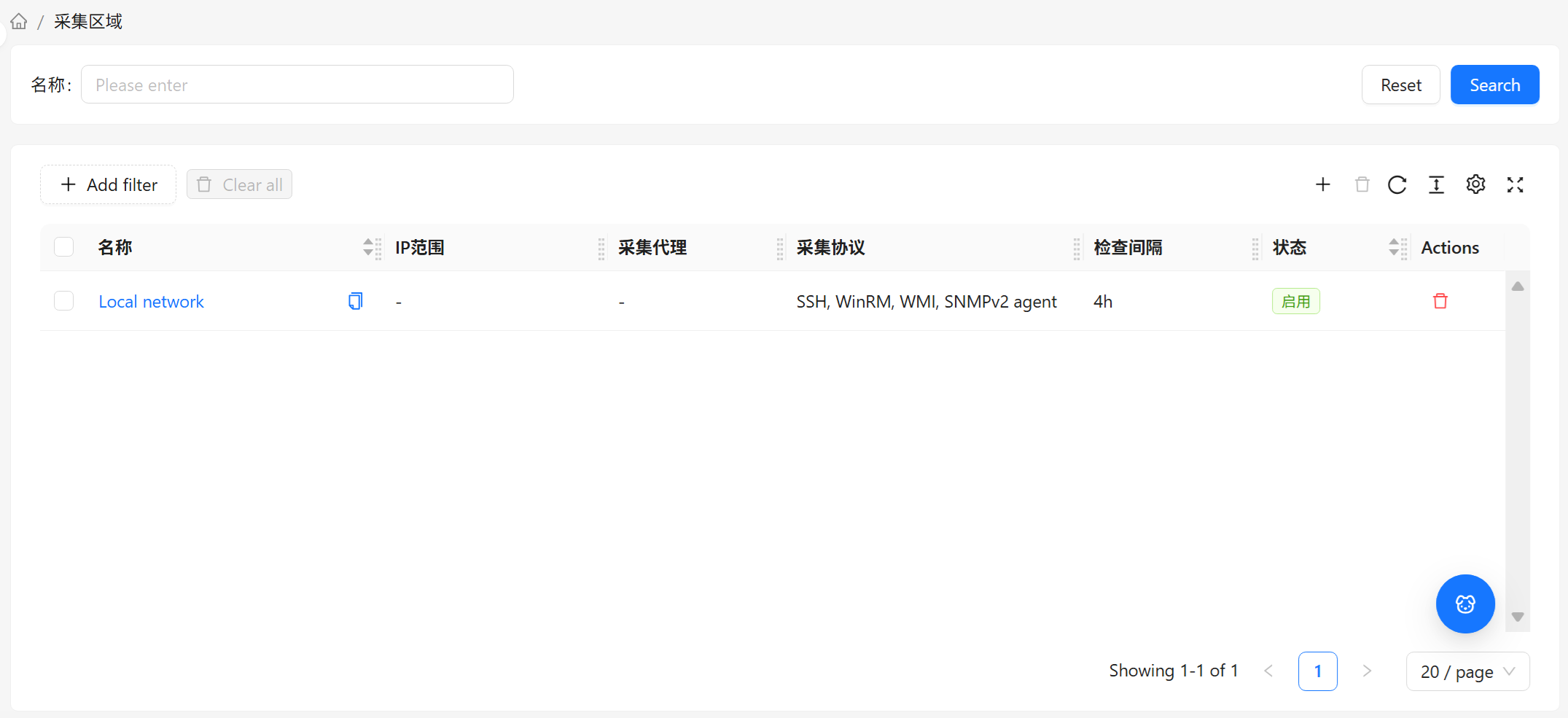
List Page
Default Columns
| Column | Description |
|---|---|
| Name | The collection zone's name. Click to enter Details |
| IP Range | The IP address segment to scan, e.g., 192.168.1.1-254 |
| Collection Agent | The agent executing the zone scan; if unspecified, the platform scans directly |
| Collection Protocol | The list of protocols used to probe devices (e.g., ICMP, SNMP, TCP) |
| Check Interval | The interval between consecutive scans |
| Status | Enabled (actively scanning) / Disabled (scanning paused) |
For common table operations such as column management, filtering, pagination, and density, see Common Data Table Operations.
Filters
You can filter by Name, Collection Agent, Check Interval, and Status. For example, to view only "zones managed by a specific agent that are currently enabled," combine these filters.
Top Bar Actions
- New: Create a new collection zone (see Create & Configure below)
- Bulk Delete: Select multiple rows and delete them at once
- Refresh: Reload the list
Details Page
Click a zone name in the list to enter its details page. The details page organizes information into two sections:
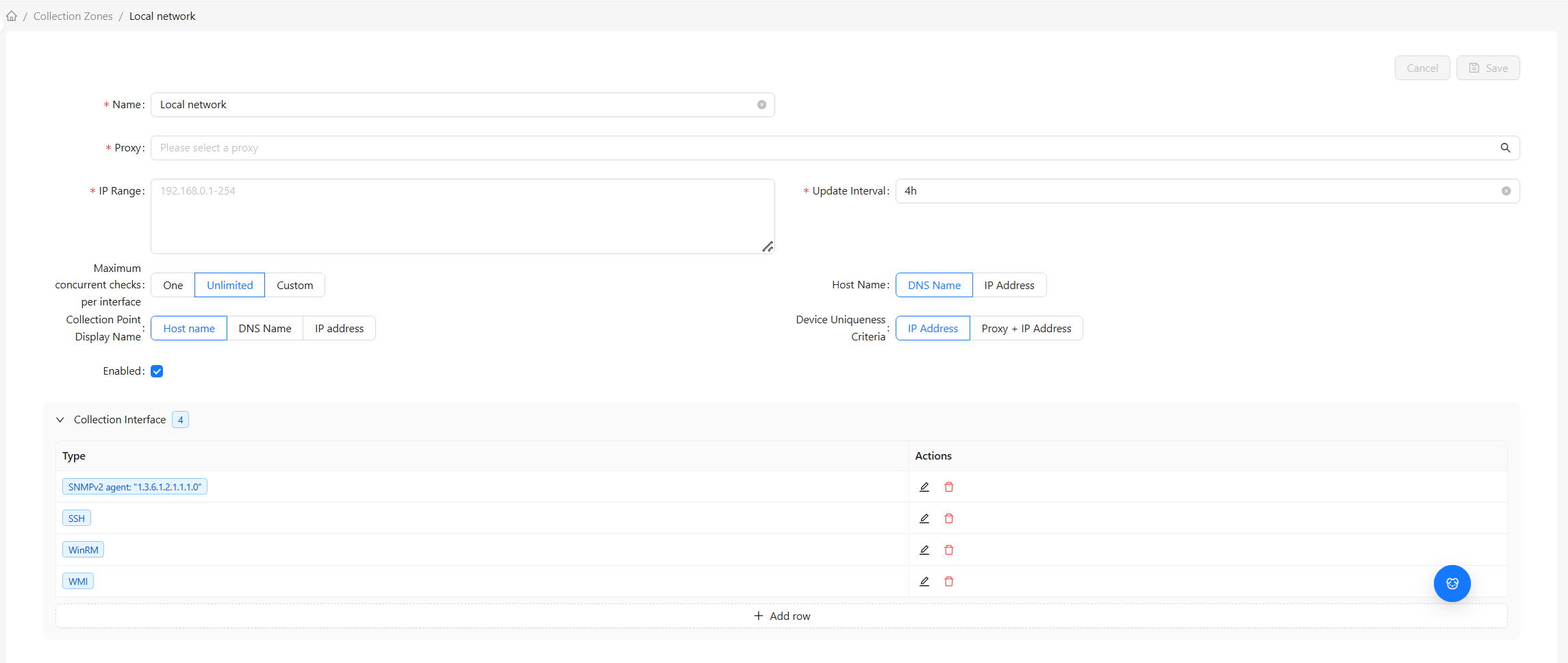
| Section | Content |
|---|---|
| Discovery Rules | The zone's main configuration: name, IP range, collection agent, check interval, status, etc. |
| Collection Interfaces | The list of probe protocols in use (each protocol and its parameters, such as port) |
At the top of the details page, you can Delete and Refresh this zone.
Create & Configure
When creating a new collection zone, fill in two sections in order:
1. Discovery Rules (Basic Configuration)
| Field | Required | Description |
|---|---|---|
| Name | Yes | The collection zone's name, used for identification |
| IP Range | Yes | The address segment to scan. Supports range notation (e.g., 10.0.0.1-100) |
| Collection Agent | No | Specify which agent executes the scan; leave blank for direct platform connection |
| Check Interval | Yes | The scanning cadence, e.g., once every 1 hour |
| Status | Yes | Enable / Disable. When disabled, the rule is saved but not executed |
The "Collection Agent" can only be left blank if the target network is directly reachable from the platform. If the devices are on an isolated network (e.g., a separate data center or private VLAN), select an agent already deployed in that network — otherwise, no devices will be found.
2. Collection Interfaces (Probe Protocols)
Here you add the protocols used to probe devices. Each interface corresponds to one probe method. Common ones include:
- ICMP: The simplest "can I ping it" check — ideal for an initial liveness sweep
- SNMP: Used to discover network devices (switches, routers, etc.). Requires the device to have SNMP enabled
- TCP: Probes whether a specified port is open — used to discover specific services
A single collection zone can have multiple protocols configured simultaneously — for example, first use ICMP to find active addresses, then use SNMP to further identify which ones are network devices.
When done, click Save. The collection zone will begin auto-scanning at the configured interval.
Common Scenarios
Scenario 1: Automatically discover all servers in a data center
- Create a new rule in Collection Zone with the IP range set to the data center's network segment (e.g.,
192.168.10.1-254) - Select ICMP as the collection interface (for initial liveness probing). If the data center is managed via an agent, specify that agent
- After saving and enabling, the system begins periodic scanning and active devices are discovered
- Pair it with a Collection Rule to automatically onboard discovered devices as collection points
Scenario 2: Temporarily stop scanning a zone
If you don't want to delete the rule but just want to pause scanning: toggle the zone's Status to "Disabled." All configuration is preserved — simply re-enable it when needed.