Configuration Topology Tab
Overview
The Configuration Topology tab graphically displays the CI's dependency relationships. It supports two view modes: Adjacency View and Explore Mode.
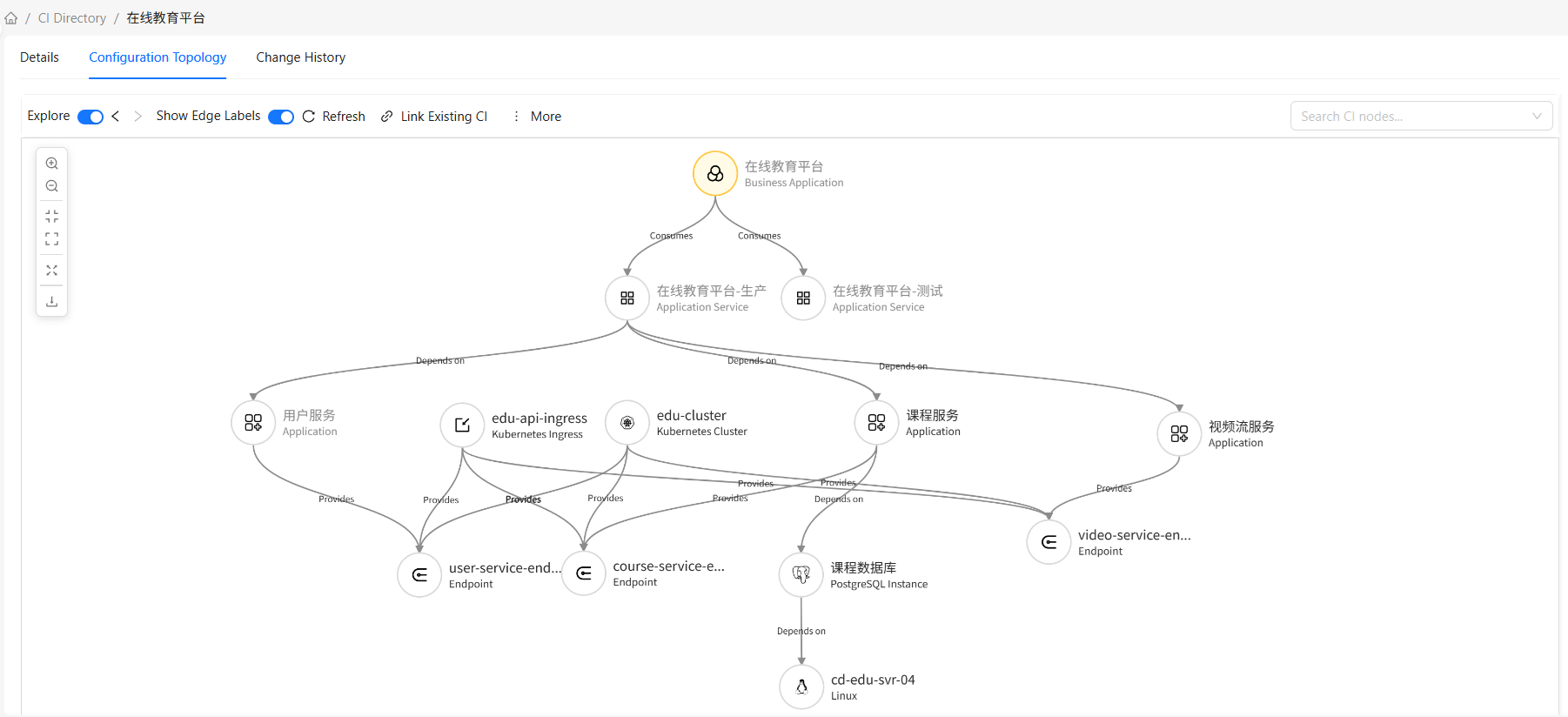
View Modes
Adjacency View (Default)
Displays all CIs directly related to the current CI:
- Upper nodes: CIs pointing to the current CI (relationships where the target is the current CI)
- Lower nodes: CIs the current CI points to (relationships where the source is the current CI)
Features:
- Loads all direct relationships at once
- Nodes can be selected to view details
Explore Mode
Starting from the current CI, gradually explore dependencies:
- Selective addition: Only add CIs of interest to the topology graph
- History navigation: Supports back/forward operations
- Filtering: Filter associated CIs by type
Features:
- On-demand loading, better performance
- Suitable for exploring complex relationship networks
- Supports creating and deleting relationships
Topology Graph Operations
The following operations are available in both Adjacency View and Explore Mode, unless marked "Explore Mode only."
Canvas Tools
The canvas toolbar provides the following operations:
| Operation | Description | How to Use |
|---|---|---|
| Zoom In | Zoom in the topology graph | Click the zoom in button in the toolbar |
| Zoom Out | Zoom out the topology graph | Click the zoom out button in the toolbar |
| Fit Canvas | Automatically adjust zoom to make all nodes visible, reset to 100% size | Click the fit canvas button in the toolbar |
| Actual Size | Keep current zoom ratio, center the topology graph in the canvas | Click the actual size button in the toolbar |
| Fullscreen | Switch the topology graph to fullscreen display | Click the fullscreen button in the toolbar |
| Download as Image | Export the current topology graph as an image file | Click the download button in the toolbar |
| Refresh | Reload current topology graph data | Click the refresh button in the toolbar |
| Search CI | Search and locate CIs | Enter name in the top search box, select from dropdown |
| Show Edge Labels | Show or hide relationship type labels | Toggle the show edge labels switch |
Node Operations
| Operation | Description | How to Use |
|---|---|---|
| Quick Preview | Shows brief CI information on hover | Hover over a node |
| Drag Node | Freely move node position | Hold and drag a node |
| View Details | View CI details in the right panel | Click a node |
| Edit Node | Edit CI attributes | Modify and save in the detail panel |
| Delete Node | Delete CI and its relationships | Select node and click delete button (Explore Mode only) |
Edge Operations
| Operation | Description | How to Use |
|---|---|---|
| View Details | View relationship details in the right panel | Click an edge |
| Delete Relationship | Delete the relationship between CIs | Select edge and click delete button (Explore Mode only) |
Adjacency View Operations
View Associated CIs
- Click any node in the topology graph
- The right panel displays detailed information for that CI
- You can edit attributes in the detail panel
Explore Mode Operations
Switch to Explore Mode
- Toggle the "Explore Mode" switch
- After entering explore mode, navigation buttons and additional operations are displayed
Select a Node to View Associated CIs
- Click any node in the topology graph
- The right panel displays the "Associated CI Filter" tab
- Associated CIs are grouped by CI type. The number next to the type name indicates the count of CIs associated with the selected node for that type
Add CIs to the Topology Graph
- After selecting a node, view associated CIs in the right panel
- Check the CIs to add
- Click the "Add" button
- Selected CIs and relationships are added to the topology graph
History Navigation
Use navigation buttons to move through exploration history:
- Back: Return to the previous exploration state
- Forward: Advance to the next exploration state
Explore Mode Features
Create Related CI
In Explore Mode, you can create new associated CIs:
- Select a node
- Click the "Create Related CI" button
- Select the CI type and relationship type
- Fill in the new CI's information
- Click "OK" to complete creation
Associate Existing CI
In Explore Mode, you can associate existing CIs:
- Select a node
- Click the "Associate Existing CI" button
- Select the CI to associate and the relationship type
- Click "OK" to complete the association
Delete Nodes and Relationships
In Explore Mode, you can delete nodes and relationships:
- Select the node or relationship to delete
- Click the "Delete" button
- Confirm the deletion
- The node and relationships are removed from the topology graph
Frequently Asked Questions
Q: What's the difference between Adjacency View and Explore Mode?
A: Adjacency View loads all direct relationships at once, suitable for viewing complete dependencies. Explore Mode loads on demand, suitable for gradually exploring complex relationship networks, and supports creating and deleting relationships.
Q: How to quickly find a specific CI in the topology graph?
A: Enter the CI name in the top search box to search. The system displays matching results — select the CI to find, and the topology graph automatically locates and highlights that node.
Q: Can I change the topology graph layout?
A: The current version uses a fixed force-directed layout. You cannot switch to other layout methods, but you can select nodes and drag them freely to adjust positions.
Q: Does deleting a node delete the actual CI?
A: Yes. Deleting a node in Explore Mode also deletes the CI data and relationships. This operation is irreversible — proceed with caution.
Q: Why can't some nodes be deleted?
A: The current CI (entry node) cannot be deleted. Other nodes can be deleted if selected in Explore Mode.
Q: How to save the topology graph layout?
A: The current version does not support saving topology graph layouts. Each time the topology graph is opened, the default layout is used.
Q: Can the topology graph be printed?
A: Yes. Use the browser's print function, or export as an image first and then print.