Valid Links
Overview
Valid Links define what relationships the current CI type can establish with other types. By defining valid links, you can build connections between CIs to form complete CI topology graphs.
Business Value:
- Establish dependency and association relationships between CIs
- Visualize CI topology
- Support impact analysis and fault location
Interface Layout
The Valid Links tab provides two view modes:
| View | Description | Use Case |
|---|---|---|
| Table View | Lists all valid links in table format | View detailed relationship list |
| Graph View | Displays valid links graphically | Intuitively view relationship network |
The toolbar contains view toggle buttons and action buttons:
- Add Valid Link: Define a new valid link
- Toggle View: Switch between table and graph views
Table View
The table view displays all valid links where the current type is a source or target:
| Column | Description |
|---|---|
| Source CI Type | Source CI type of the relationship |
| Relationship Type | Type of relationship (e.g., depends on, uses, etc.) |
| Target CI Type | Target CI type of the relationship |
| Inherited | Shows whether the relationship is inherited from a parent type |
| System | Shows whether the relationship is system built-in or custom |
| Actions | Edit, delete, view operations |
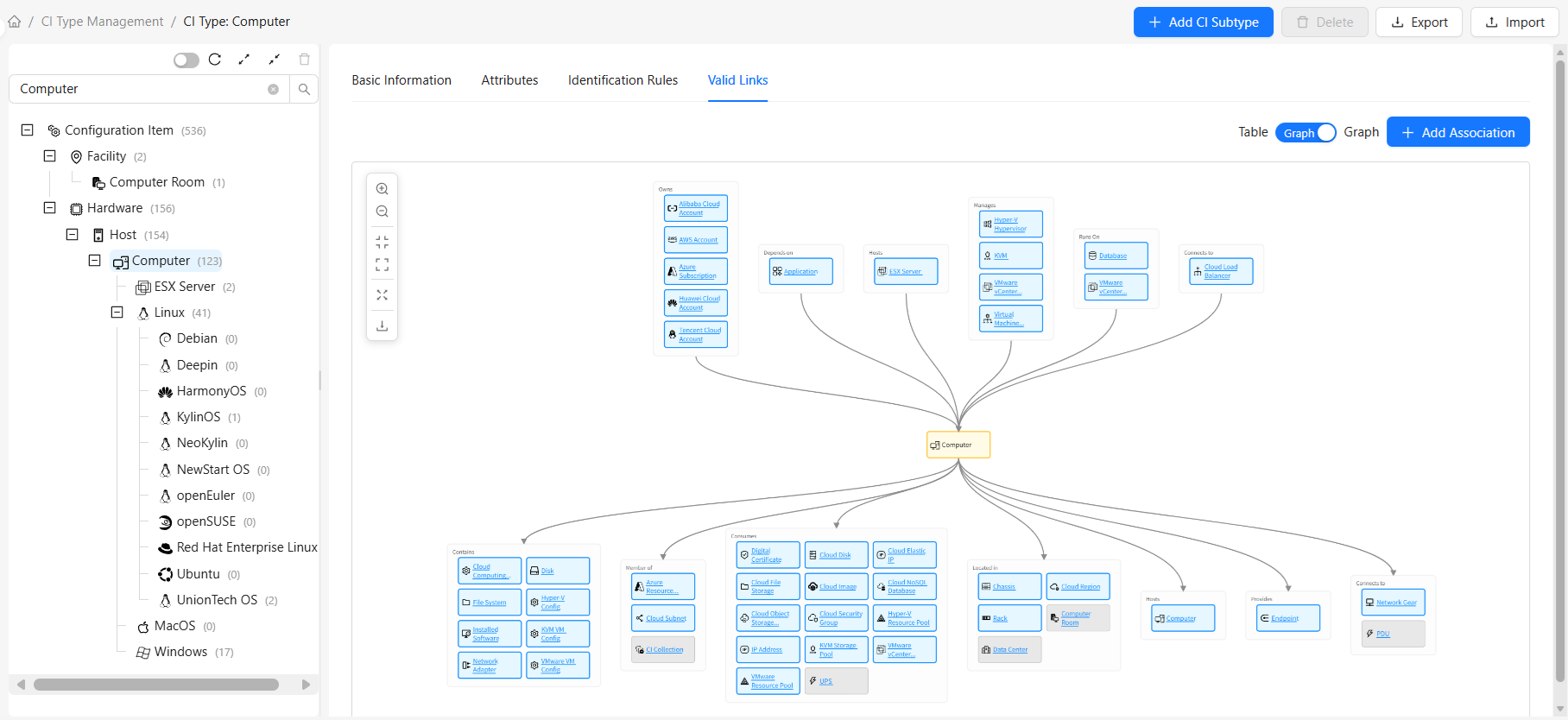
Graph View
The graph view displays valid links visually:
Graph Elements
| Element | Description |
|---|---|
| Nodes | Represent CI types. Background color meaning: orange (current type), light blue (relationships defined on current type), gray (inherited relationships) |
| Containers | Group nodes that share the same relationship type with the current type, with the relationship type label at the top |
| Edges | Represent valid links, with arrows pointing to the target type |
Graph Layout
The graph view uses a vertical layout with nodes distributed as follows:
| Area | Content |
|---|---|
| Top | Relationships where the current type is the target |
| Bottom | Relationships where the current type is the source |
| Center | Current type node |
Graph Operations
| Operation | Description |
|---|---|
| Click type name | Opens the valid links page for that CI type |
| Click X button on opposite type | Deletes the relationship between the current type and that type (only effective for custom relationships; inherited or system built-in relationships don't show the X button) |
Adding Valid Links
Steps
- Click the "Add Valid Link" button in the toolbar
- Configure the valid link in the popup dialog
Field Reference
| Field | Description |
|---|---|
| Current CI Type | The current CI type; cannot be modified |
| Link Direction | Select forward or reverse. Forward: current type is source; Reverse: current type is target |
| Target CI Type | Select the type at the other end of the link. Any type can be selected |
| Relationship Type | Select the relationship type. Must be defined first in CI Relationship Types |
Examples:
Application→Computer:Applicationdepends onComputerComputer→Server Room:Computeris located inServer Room
Editing and Deleting Valid Links
Steps
Edit Valid Link:
- Find the relationship to edit in the table view list
- Click the "Edit" button on that row
- Modify the relationship configuration in the popup dialog
- Click "OK" to save changes
Delete Valid Link:
- Find the relationship to delete in the table view list
- Click the "Delete" button on that row
- Click "OK" in the confirmation dialog
Restrictions
The following types of valid links can only be viewed, not edited or deleted:
| Relationship Type | Description | How to Handle |
|---|---|---|
| Inherited relationships | Valid links inherited from parent type | Need to modify or delete in the parent type |
| System built-in relationships | System predefined valid links | Cannot be modified or deleted |
Deletion Note: Deleting a relationship only removes the relationship definition and does not affect existing CI association instances.
Inherited Relationships
Subtypes automatically inherit valid links from their parent type.
Example:
Hosttype defines a relationship withData CenterComputerinherits fromHostand automatically has this relationshipComputercan then define a relationship withRack
In the valid links list, inherited relationships show an "Inherited" label and can only be viewed, not edited or deleted. To modify them, go to the parent type.
System Built-in Relationships
The system includes predefined valid links to ensure the integrity of the base topology structure. These relationships can only be viewed, not edited or deleted.
Characteristics:
- Predefined by the system, not modifiable
- Usually common generic relationship types (e.g.,
depends on,uses,manages, etc.) - Can be used in any CI type
Relationship Type Management
Relationship types must be predefined in the "CI Relationship Types" module.
For detailed relationship type management instructions, see: CI Relationship Types
Frequently Asked Questions
Q: What's the difference between valid links and attributes?
A:
- Valid Links: Establish connections between CIs, can form topology graphs
- Attributes: Record characteristic information about CIs themselves
Q: Why can't some relationships be edited or deleted?
A: The following two types of relationships cannot be edited or deleted:
- Inherited relationships: Valid links inherited from parent types; need to modify or delete in the parent type
- System built-in relationships: System predefined valid links that ensure base topology structure integrity; cannot be modified or deleted
Q: Does deleting a valid link affect existing data?
A: No. Deleting a valid link definition only prevents new associations from being established; existing CI associations are not affected.
Q: How to establish bidirectional relationships?
A: Define relationships in both directions separately. For example:
Application→Computer:depends onComputer→Application:provides
Q: Is there a limit on the number of valid links?
A: There's no hard limit. However, it's recommended to keep the number of valid links reasonable to avoid overly complex topology affecting performance and readability.
Q: How to use valid links with CIs?
A: In CI Directory, select a CI instance, click the Configuration Topology tab, switch to Explore Mode, click the "Create Related CI" button, select the defined target CI and valid link to establish the relationship.