Component Resources Tab
Overview
The Component Resources tab displays the CI's component resources. This tab is a system preset feature — it is only displayed when viewing the detail page of CIs with the Computer type. Customers cannot configure other types to display this tab.
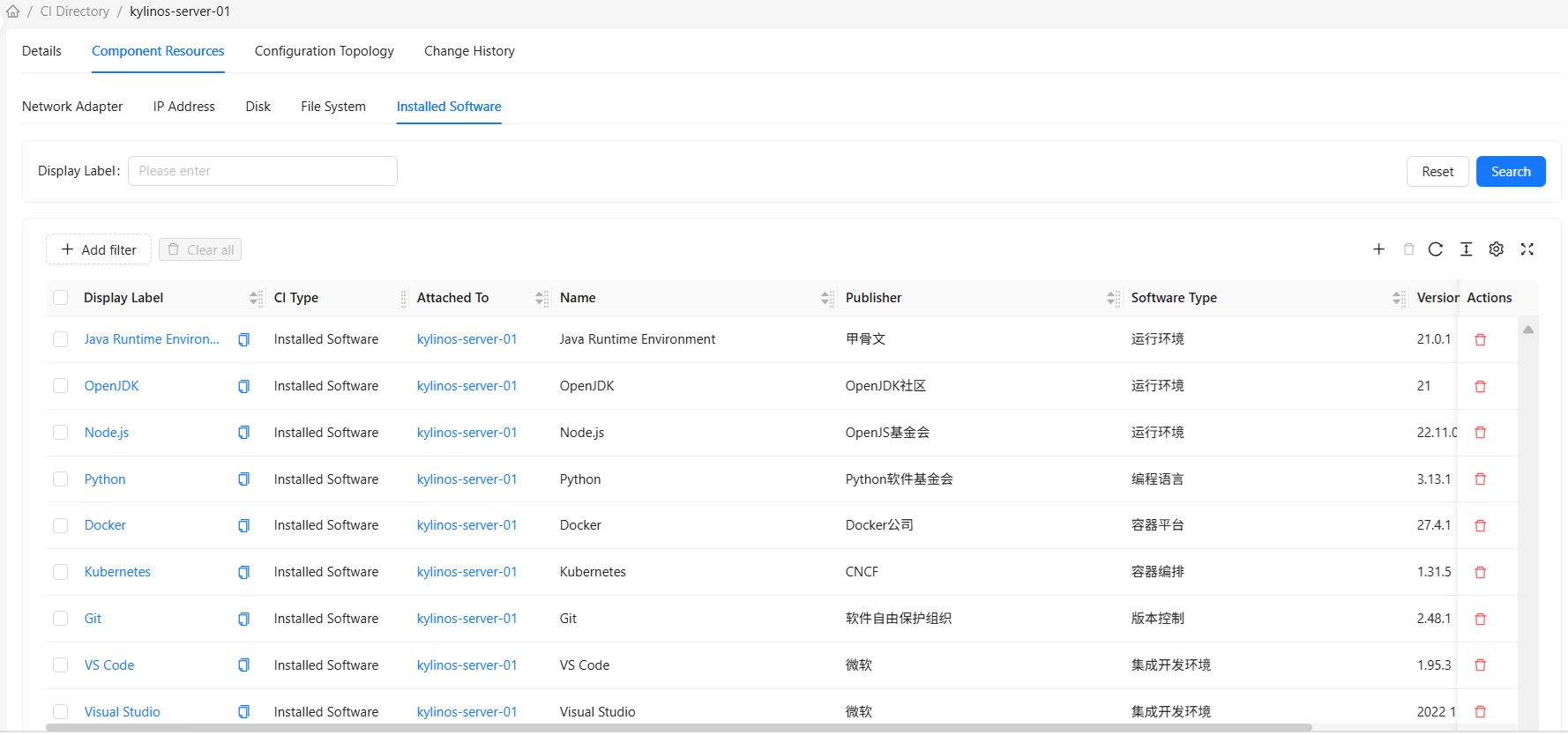
Tab Structure
Sub-tabs
Component resources are displayed grouped by component type, with each component type corresponding to a sub-tab:
- Network Adapters: Displays the computer's network adapters
- IP Addresses: Displays the computer's IP addresses
- Disks: Displays the computer's disks
- File Systems: Displays the computer's file systems
- Installed Software: Displays software installed on the computer
Component List
Each sub-tab displays a list of CI instances of the corresponding component type:
- Component Name: Display name of the component CI
- Component Type: Type of the component CI
- Other Attributes: Displays relevant attributes based on component type
Viewing Component Resources
Select Component Type
- Select a component type sub-tab at the top of the Component Resources tab
- Displays all component CIs of that type
View Component Details
- Click the display name of the component to view in the component list
- The system navigates to that component's detail page
- You can view and edit the component's detailed information
Use Cases
Scenario 1: View a Computer's IP Addresses
Business Need: View which IP addresses are assigned to a computer.
Steps:
- Open the computer's detail page
- Switch to the "Component Resources" tab
- Select the "IP Addresses" sub-tab
- View all IP addresses for this computer
Scenario 2: View Software Installed on a Computer
Business Need: View what software is installed on a computer.
Steps:
- Open the computer's detail page
- Switch to the "Component Resources" tab
- Select the "Installed Software" sub-tab
- View all software installed on this computer