License Status
Overview
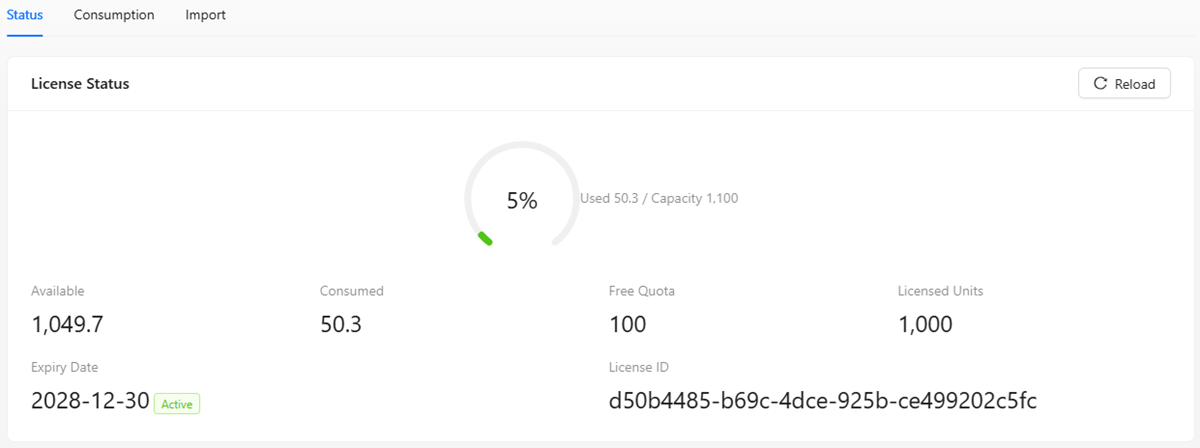
The License Status tab is the landing page of License Management and the page most frequently viewed day to day. It uses a gauge widget and a set of key numbers to answer the single most important question: "Is capacity still sufficient?"
The page is divided into three areas from top to bottom:
- Alert banner (conditionally shown) — when capacity approaches the limit or the license has expired, a prominent colored banner appears at the top
- Capacity dashboard — a sector gauge showing the usage percentage, with color that changes as the level rises
- Key metrics — available, consumed, free allowance, license units, expiry date, license ID
Alert Banner
When the capacity level reaches an alert threshold or the license expires, a colored banner appears at the top of the page indicating the current status and the action needed.
| Banner color | When it appears | Meaning and recommended action |
|---|---|---|
| 🟡 Yellow warning | Capacity usage reaches 80% | Capacity is getting tight. Review usage details and plan an expansion |
| 🟠 Orange error | Capacity usage reaches 90% | Creation is about to be blocked. Import a new license as soon as possible |
| 🔴 Red error | Capacity usage reaches 100% | Creating new resources is now blocked. Expansion is required to restore it |
| 🔴 Red error | License has expired | Capacity has been downgraded to the free allowance. Import a new license file |
The 90% and 100% banners are not just notices — they mean the platform has started restricting creation. At 90% the system is about to block creation of new CIs; at 100% all new-CI creation operations are rejected outright. When you see an orange or red banner, prioritize it — go to the Import License tab and upload a new file.
When capacity usage is below 80% and the license has not expired, no banner is shown.
Capacity Dashboard
The center of the page features a sector gauge that intuitively displays the current capacity usage percentage.
- Percentage number: The center of the gauge shows the current usage rate (consumed ÷ total capacity × 100%)
- Usage text: Below the gauge the specific values "Used X / Total capacity Y" are displayed
- Color coding: The gauge color changes with the alert level, consistent with the banner
| Level | Gauge color | Meaning |
|---|---|---|
| < 80% | 🟢 Green | Capacity is sufficient; normal operation |
| 80% – 89% | 🟡 Yellow | Approaching the warning threshold |
| 90% – 99% | 🟠 Orange | Danger zone |
| 100% | 🔴 Red | Full |
Key Metric Cards
| Metric | Meaning | When to pay attention |
|---|---|---|
| Available | Total capacity − consumed; how many more resources can be created | Determines "how many more devices can be added" |
| Consumed | The total converted units of all current CIs | Measures current usage |
| Free allowance | The base capacity before any license is imported | Understand how much is from the free portion |
| License units | The additional capacity granted by a formal license | Understand how much is from the purchased portion |
| Expiry date | The license validity end date, with a status label | Plan renewal timing |
| License ID | The unique identifier of the current license | Needed for vendor reconciliation or technical support |
Expiry date status labels:
| Label | Condition | Meaning |
|---|---|---|
| 🟢 Valid | A license has been imported and has not expired | Everything is normal |
| 🔴 Expired | A license has been imported but the expiry date has passed | Capacity has been downgraded to the free allowance |
| ⚪ No license | No license imported (using only the free allowance) | A license must be imported to expand capacity |
A license is considered expired on its expiry date. We recommend completing renewal at least one week before that date.
Reload
There is a "Reload" button in the top-right corner of the page.
When to use it:
- After replacing the license file on the backend manually (e.g. via command-line), click this button to have the frontend re-read it
- If you suspect the displayed capacity data is not up to date, click to force a refresh
- Under normal circumstances there is no need to click manually — the system refreshes automatically after a successful license import
After clicking, the button shows a loading state. Once the refresh completes, the dashboard and metric cards update to the latest data.
Common Scenarios
Scenario 1: Routine Capacity Inspection
Business need: As an administrator, you need to periodically check whether platform capacity is sufficient, to avoid creation operations being unexpectedly blocked.
Steps:
- Go to the "License Management" menu; the "License Status" tab is shown by default
- Check the gauge color and percentage:
- 🟢 Green (< 80%) — capacity is sufficient; no action needed
- 🟡 Yellow (80%+) — start paying attention; check Usage Details to understand consumption sources
- 🟠 Orange (90%+) — import a new license as soon as possible
- 🔴 Red (100%) — expansion is required immediately
- Check whether the "Expiry date" is approaching, and arrange renewal in advance
Expected result: You have a clear picture of the current capacity level and will not be caught off guard by a sudden creation block.
Scenario 2: Confirming the Impact After License Expiry
Business need: After a license expires, you need to confirm what state the platform is currently in and whether it is still usable.
Steps:
- Go to the "License Status" tab
- Check the top banner — it shows a red "License has expired; capacity has been downgraded to the free allowance" message
- Check the dashboard — capacity has dropped from "license units + free allowance" to only "free allowance"
- Check the expiry date — the status label changes to a red "Expired"
Expected result: The platform is still usable, but capacity is limited to the free allowance. Resources exceeding the free allowance are not deleted, but new resources cannot be created. Importing a new license restores normal operation.